

Use Outline from the menu bar
While Outline is running, its menu bar icon gives you quick access to notes and Spaces from anywhere on your Mac.
The menu follows the Space in your most recently focused Outline window. If you use more than one Outline window, focus a window to show that window's Space and recent notes in the menu.
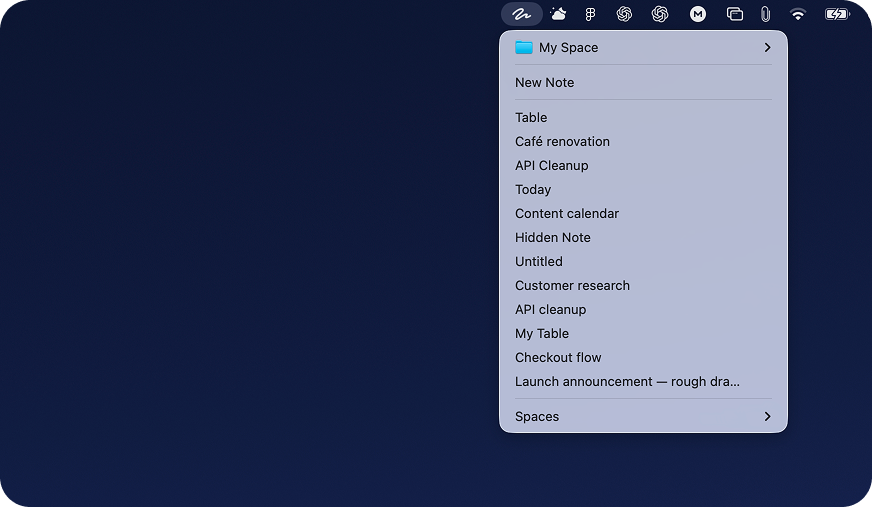
Create a note
- Select the Outline icon in the menu bar.
- Select New Note.
Outline creates the note in the Space shown at the top of the menu and opens it in a new window.
Open a recent note
Select a note below New Note to open it. If that note is already open in its own window, Outline focuses the existing window.
The list contains recently updated notes from the Space shown at the top of the menu.
Switch Spaces
- Point to Spaces at the bottom of the menu.
- Select a Space. A checkmark identifies the current Space.
Outline focuses an existing window for that Space. If the Space is not open in another window, Outline opens it in a new window.
Open Space settings
- Point to the current Space at the top of the menu.
- Select Settings.
Outline focuses or opens that Space's window, then displays its settings.